Total Pageviews

Tuesday, August 21, 2018

Don't download nor upload anything to MEGA, it could hog your network and it's not free!

Several downloads or file sharing services are around there but for example, some firmwares are being uploaded to the site MEGA and the last time I revisited that, my whole upload bandwidth was eaten by the site using Firefox. I don't know, but they use some weird way for downloading via browser cache so you can't use a download accelerator and you could be shutlinked at any moment according to the "traffic" on that service. Better use uTorrent. For example now I'm sharing the E5633 lollipop russia generic (android 5.1) at:

http://scrv-zapto.org/public/E5633_30.1.B.1.55_R3A_Russia Generic_1297-3945.ftf.torrent
http://scrv-zapto.org/public/E5633_30.1.B.1.55_R3A_Russia Generic_1297-3945.ftf.torrenthttp://scrv-zapto.org/public/E5633_30.1.B.1.55_R3A_Russia Generic_1297-3945.ftf.torrent
E5633_30.1.B.1.55_R3A_Russia Generic_1297-3945.ftf.torrent


MEGA File Sharing Service is not Free! Avoid it.
Update: Posting to NRG Tech Tips ftf firmware for Xperia E5663
Source: http://www.xperiablog.net/forum/resources/xperia-m5-dual_e5663_30-1-b-1-33_india_generic.558/
Download Link: https://mega.nz/#!opgX1YRK!urL6_i1esm_nD-tiwyinzICgMGGkSU33HaxNclu246Q

Mirror: E5663_30.1.B.1.33_R7A_India Generic_1298-2221.ftf.torrent
We couldn't find the stock 5.1 firmware for Latin-America region, but we already tested the ftf of Android 5.0 (E5663_30.0.B.1.33_1297-3937_Customized-MY). When flashing to the phone some warnings appeared and the overall functions are totally fine, no issues except the built-in software updater is not working, the app downloaded update package from 5.0 to android 5.1 but when applying it, the android robot appears on the screen but immediately the Xperia M5 Dual restarts and failed to update the software.

Full directory: http://scrv.zapto.org/public/

So next step is as we saw in some forum, install the update using the full firware we are sharing here but not checking "wipe userdata" and see if personal data remains. Do not try this at home, at least not without making a backup. And if your battery is fine, we don't recommend updating the firmware when it is working in normal condition. Yeah, we know, 5.1 update comes with several bug fixes and makes the phone more battery efficient, but perhaps is not worth the risk or loosing files or even, hope never happens to you, brick it.


http://scrv-zapto.org/public/E5633_30.1.B.1.55_R3A_Russia Generic_1297-3945.ftf.torrent

http://scrv-zapto.org/public/E5633_30.1.B.1.55_R3A_Russia Generic_1297-3945.ftf.torrent

Friday, August 3, 2018

Dump for recovery v700 (Must be rooted)

In this tutorial you will learn how to root a LG tablet with LGONECLICKROOT and then how to dump the bulk data from internal storage partition to your PC. Let's start with the first and most tedious part, rooting and using cygwin, which must be linked to adb by using one or two methods available, This is not a very effective process but we doubt anyone of us have a FBI lab to read the contents of the memory directly with forensic equipment.

If you are getting the stuck screen at command prompt "SPECIAL COMMAND" like the one below it could be due to encryption. First decrypt the tablet doing a complete backup because you could loose all your files in the process if something happens.
Stuck at "Special Command, enter, leave".
By decrypting the tablet, it didn't stuck at the same screen but in the end of the running screen you are asked to type somehing.

1) Next step is to install BusyBox for Android, probably you don't need help here.

2) Once installed, re-encrypt the tablet including empty space sectors (FULL ENCRYPTION) and when the process is done connect the tablet to pc.

3) We hope you already linked android-sdk to cygwin so open a cygwin terminal and type manually
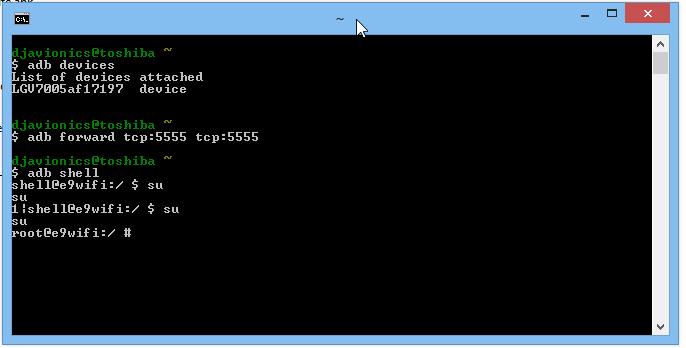
adb forward tcp:5555 tcp:5555 and press INTRO. In windows 8.1 the copy and paste failed and we don't recommend copy/paste method for some buggy reason pretty hard to explain here.

4) Enter the command adb shell

5) Enter the command su
*If it is the first time, you have to grant permission by unlocking the screen and accepting any request made by the SUPERUSER If you missed, just re enter the command and next time the request will display on a tablet again, but for a few seconds.
Grant permission to SUPERUSER by unlocking the screen.
 
Finally you will end with a screen like this.


6) Enter the command (but for me only worked if I wrote manually):
/system/xbin/busybox nc -l -p 5555 -e /system/xbin/busybox dd if=/dev/block/mmcblk0p34
*nothing special happens, mmcblk_p__ could be differentl some tutorials will tell you to dump the entire flash memory and others will explain how to figure out which number is the partition containing your personal data.

7) Open another cygwin instance by clicking the shortcut again and enter:
a) adb forward tcp:5555 tcp:5555
*nothing happens

b) cd /nexus

c) nc 127.0.0.1 5555 | pv -i 0.5 > mmcblk0p34.raw
 * Vertical Bar is alt+0124, source website.
* and you should see some flowing logs like:
Cygwin32 can run more than one instance for this job. You don't need cygwin64 in 64-but Windows OS
And this could take some time, between half an hour and 45 minutes.

Then you can open a command prompt at android sdk platform tools folder to "eject" the tablet, in our test we just unplug it without risks but if you want to:


8) Finally you will end with a big file with around 11GB in size that you must convert with vhdtool.exe, again, using a command prompt. This will make the raw file we have just created readable by Windows. The process takes a few miliseconds!
The process of converting the raw file takes no time.
9) Go to Nexus directory (the source website was recovering files from a nexus tablet so, it kept as it) where you must have the vhdtool (it is just a portable exe) and the mmcblk0p34.raw and open a command prompt to run the command: vhdtool /convert mmcblk0p34.raw
VHDTool.exe will do the trick
As shown before, the process is inmediate.
10) Open the disk management console and attach a new vhd:
a) For sure you don't need help where to find the disk management console of Windows


b) Browse for the file

c) Select from the drop menu not to filter any extension *.* and open it.


d) Click OK!


e) Oops, this error could happen in Windows 8.1
 f) Enable show hidden extensions and rename it from *.raw to *.vhd, don't care about the warning about changing the filename extension.
f) Enable show hidden extensions and rename it from *.raw to *.vhd


g) Now you should be able to attach the vhd so repeat the process and initialize it as shown here:
h) Select GPT partition


i) Right Click over the disk to create a new volume with that information, without formatting, with default allocation size.
i) Create a new volume with that information, without formatting, with default allocation size.

j) Cancel the pop-up once new volume and letter are ready.

11) Now go to My Computer and look for the new drive, format with default allocation size iin FAT32, using quick mode!

12) Your drive should be ready to be scanned by Recuva. We don't recommend using another software as getdataback for fat because they don't have simple user interface, lot of options and in exchange this one will do the job with ease.

Monday, July 30, 2018

Downgrade lollipop a KitKat, LG v700

Al 2018 esta tablet quadcore de 1.2 GHz paso del ser equivalente a un celular De tope de gama en la fecha de su lanzamiento a ser una carreta cargada y con las ruedas pinchadas! Usamos la actualización a lollipop y esto no da para mas, volveremos a KitKat que aunque también lento, esa "latency" es mas que aceptable. En lollipop por ejemplo, cambiar de usuario puede hacer que la tableta se cuelgue y haya que reiniciar.

Empecemos!
Primero de todo, los backups. El downgrade hará un wipe total sin posibilidad de recuperación de datos posterior, sobrescribiendo todo el espacio vacio con ceros y unos.

1) Bookmarks de google Chrome con Superbackup. Si tenemos Chrome beta no podremos respaldar los a no ser que hagamos un screenshot o los copiemos y pegumos manualmente en el anotador.

2) QuickMemos Nuestro self Services backups será de una versión posterior a KitKat por lo que es probable que no nos sirvan los datos de un lbf de lollipop en KitKat. Deberemos guardar manualmente los datos de quickmemo, exportando a la memoria microsd desde la interfaz del programa!

2) Apps descargadas; si teníamos Super Backup (v2.2.09) desde el primer momento, esta aplicación hace backups del apk de cada app que nos bajemos y es muy útil tener los instaladores apk listos en el siguiente formateo y no estar bajando todo de nuevo.
Con ES File Explorer podemos pasar al PC los .apk respaldados por "Super Backup"

3) Homescreen; ubicacion de los elementos del escritorio y fondo de pantalla. El servicio offline integrado de LG para hacer backups tiene esta posibilidad pero como pasaremos a otra versión de Android probaremos utilizando el backup manual del escritorio;
Escritorio de Android 5.0.2 Lollipop
Acaabremos con 3 achivos creados en simulateaneo los cules seran nuestro backup del escritorio
 4) Carpeta DOWNLOADS; Es recomendable ordenar todos los archivos descargados desde internet pero si no es posible, respaldar la carpeta entera es una buena opcion.

5) Carpeta VoiceRecorder; Aunque la utilidad de backup integrada ofrece guardar estos archivos en el lbf, como estamos cmbiando de versiones mejor es respaldar toda la carpeta manualmente, cuidado que puede que los archivos no contengan metadata o se nombren simplemente por recording count y no por fecha y hora estilo 20181224_00-00 por lo que debes fijarte de anotar las horas de las grabaciones o cuando las pases al pc van a tener fecha y hora del copy paste y no la fecha original.

6) Quickmemo+ Folder; En esta carpeta se pueden guardar archivos complementarios como imagenes creadas por esta aplicacion, respaldar la carpeta entera.

7) Y antes de formatear, proba si el juego que antes no te andaba ahora te anda! (CSR Street Racing2)
Probado: Failed... El juego llega a cargar la musica y algunos logos pero se cierra solo sin llegar a la pantalla principal.

8) Rootea la tablet

9) Instala BusyBox para hacer un dump de la particion de datos por si despues queres recuperar algo.

Tuesday, July 24, 2018

Editando un video en tiempo real desde cero, from raw to streaming service.

Hay muchisimas formas de editar un video, muchas de pago y otras gratuitas, por ejemplo sacarle el polvo a una vieja copia de Adobe Premiere que tengamos guardada e intentar editar un video grabado con nuestro smartphone android usualmente con el codec .h264.

El primer problema con el que nos vamos a enfrentar es que Adobe no soporta la importacion de archivos en contenedores mp4 por lo que tenemos un par de alternativas a considerar:

Convertir con WinAVI 7 o 8 nuestro video a Lagarith en contenedor AVI, este codec es Loseless y suele venir en K-Lite Codec Pack en su version MEGA (para este tutorial pasaremos de la 8.8.0 standard a la 1010 mega):
Step 1 - Instalar K-Lite v10.0.1

Siempre elegir "Advanced".

Seleccionando el directorio


Implementar aceleracion por hardware, puede no ser muy efectivo
 Y los screens que no aparecen, solo poner "siguiente".


 Asimismo debemos convertir o seleccionar en este paso el audio de salida en Wave PCM uno de los formatos mas faciles de trabajar. Es posible que Adobe Premiere o bien lo acepte o aparezca el video inutilizable, en donde debemos abrir el raw con VirtualDub y recodificarlo en el mismo formato Lossless. Incluso habiendo logrado este paso, al importar a adobe premiere puede aparecer ruido digital al volver a exportar nuestro trabajo al mismo codec.


La segunda alternativa es utilizar h264 lossless audio PCM Wav en contenedor avi, usando esta opcion no se observa la aparicion de ruido digital en el audio ambiente de nuestro clip. Cual es la desventaja? Dudo que exista un formato lossless en h264 y la ultima vez que googleamos no obtuvimos respuestas concretas.

Preparando nuestros archivos (Asegurarse de contar con mucho espacio en disco)

Abrir nuestro RAW h264 bajado desde nuestro smarphone con WinAVI 8 Converter  y elegir la opcion "AVI" como se muestra en el screenshot abajo.
El primer paso es convertir el raw bajado desde nuestro smartphone.


Abrimos los parametros de configuracion donde nos da a elegir el encoder de video y audio, para video usamos el codec "Lagarith Lossless Codec" y para la pista de audio "ZJMedia Uncompress PCM". En el primer caso podemos clicar en el boton de los puntos suspensivos y habilitar multithreading que supuestamente es para utilizar todos los nucleos que tu procesador tenga. En nuestras pruebas no vimos diferencia apreciable entre tener o no activada esta opcion, en un caso la codificacion estimó un tiempo de 14 minutos y con multicore 12 minutos.
Segun la duracion del video nos puede dar unos 30 gigas cada 20 minutos al usar "Lagarith".
Antes de seguir con el tutorial podemos leer este enlace externo sobre la diferencia entre Average Bit Rate y Constant Rate Factor.

ABR vs Constant Rate (External Link for reference)


Una vez finalizada la codificacion vamos a tener un archivo bastante grande pero para ser lossless es un tamaño mas que aceptable. Si eligieramos video sin comprimir en FULL HD tendriamos 2mb por cada frame, si el video tiene 30fps serian 60MB por segundo de video o 3.6GB por minuto ya que cada frame seria como tener un archivo de imagen de mapa de bits, y son solo valores estimados minimos.


To be continuated...

Friday, July 13, 2018

Sony Xperia m5 dual upgrade to marshmallow, a disaster! (Almost)

Forger about upgrading your xperia to marshmallow, better just make a hard reset or factory reset and see if the system's corrects itself.

Some strange behavior started with our Sony xperia m5 dual and we decided to give marshmallow official update a chance. Bad idea. Our battery was damaged before and now it is almost over. Power consumption is lot higher than in lollypop and don't forget that replacing the boot loader is a very difficult process involving requesting some code to Sony corporation and they warn you that you'll or could loose key functions as those related to low light sensibility for the camera.

Now we are trying to figure out how to downgrade this time with stock ROM from some Russian hackers without having to unlock the boot loader or root the device.

I can't say the camera is better perhaps ISO sensibility is better for still images but I don't like the GUI and video under low light it is still bad.

Hope our stock ROM we got work as good as lollipop 5.0 correct me if that was not the version which come with brand new xperia. The version you can find on the internet is lollipop 5.1

Upgrading to lollipop, not really worth it. LG v700

A few weeks ago we treated how to recover the system of a v700 tablet from the southkorean brand. After using it for that amount of time we realized it is not worth keep in this android version. Let's mention the pros and cons now;

Pros:
- IR Blaster for QuickRemote still works with the tablet being encrypted.
- FTP now does work with NoRoot Firewall on.

Cons:
- Now dual band WiFi doesn't work, only 2.4ghz
- Higher power consumption
- Higher resources consumption
- Higher rate of "snaps" when loading websites with bad optimized javascript. (Chrome)
- incognito mode still crashes the browser without possibility of recovering browsong sessionsession (chrome).
- LG virtual keyboard is terrible bad and useless it even obstructs the vision under any condition. (Split landscape mode)
- ES File Explorer still crashes when loading movies thru FTP (both old and new versions)
Do you mind to update to lollipop? Better don"t


Monday, June 25, 2018

Flasheando una Tablet LG G-pad v700 10.1" (Upgrade for recovery)

Flasheando una Tablet LG G-pad v700 10.1" (Upgrade for recovery)
 
Requisitos:
- Tablet LG Pad 10 v700 en modo usb MTP (el modo común para pasar archivos al PC)
- Cable de datos USB estándar.
- LG Support Tool descargable aqui
- Conexion a internet
- 1GB de espacio en disco.
- Firmwares (V70020c_00)
- Backups de las carpetas;
Internal Storage... Pictures
Internal Storage... Whatsapp (Si usas whatsapp en la tablet, toda la informacion personal se guarda en esta carpeta, si por algun motivo necesitas restaurar tu Whatsapp, bastara con copiar y pegar el backup en la Tablet antes de instalar el .apk)


- Backup hecho con la aplicacion incorporada sin PC (archivos .lbf);
Home and Lock screens (Restaura la ultia configuracion personalizada del escritorio pero por alguna razon no restaura nuestra contraseña de desbloqueo ni el tipo de animacion de autoapagado)
Apps (se recomienda hacer backups de los .apk por separado de lo contrario requiere una cuenta de Google para poder usar esta funcion, ademas no esta probado que restaure la data personal por ejemplo los bookmarks de navegadores o los progresos de algun juego)

Personal Data
Clock (no lo probe pero calculo que restaura la zona horaria)
Bookmarks (No tan importante, restaura solo los bookmarks del navegador stock de Android, hoy en dia ya en desuso)
Calendar (Dudo que tengas algo para respaldar del calendario)

Voice Recorder (Se puede respaldar o restaurar manualmente copiando y pegando la carpeta correspondiente)
QuickMemo+ (Importantisimo, restaura las anotaciones del block de notas LG)

Media data (Internal Storage)
No recomiendo tener una microSD colocada, este apartado respalda segun la eleccion los documentos, fotos de la carpeta DCIM, videos, videos descargados y otros archivos creados por el usuario, lo mejor es revisar cada una de las carpetas en busca de documentos personales y en primer lugar, siempre guardar todo en una sola carpeta llamada "Mis Documentos". Otra opcion es mover todo a una microSD pero se debe tener cuidado porque ultimamente se han reportado fallas catastroficas en este tipo de tarjetas, ademas el almacenamiento flash nunca ha sido seguro. Al dia de hoy el soporte magnetico mecanico sigue siendo el mejor.

LG app data
QuickRemote (Esto respalda la configuracion del control remoto para TVs Smart, la tablet v700 cuenta con un emisor infrarrojo para convertirlo en un control remoto universal)
Weather (Restaura la ciudad cargada en el Widget de AccuWeather, muy util)

Settings
Wi-Fi  (Esto re restaura las conexiones wifi guardadas, muy util si fuiste de viaje y queres dejarte un recuerdo)


Nos encontramos en la situación de que nuestra tablet parece estar "buggeada", el uso principal que le damos es ver películas desde un servidor media central en nuestra red local WLAN, en otro post habíamos dado la noticia de haber encontrado la solución, y la solucion por el momento es, basándonos en que probablemente nuestra instalacion este corrupta o simplemente Android Kit-Kat no soporte trabajar con servidores FTP y Firewall No-Root al mismo tiempo, hacer un upgrade de Android 4.4.2 (V70010d_00) a Android Lollipop 5.0.2 (V70020c_00) donde el numero 10 representa el codename de Android si es Kit-Kat o 20 si el codename es Lollipop. La letra al final de la serie representa la release, siendo la d, la ultima actualización de firmware disponible para kitkat y la "c" la ultima que salió para Lollipop.


"The program can't start because mfc100.dll is missing from your computer. Try reinstalling the program to fix this problem."

Al empezar los preparativos para hacer el upgrade y querer hacerlo con la utilidad oficial nos apareció este error que no se resolvió hasta que descargamos el updater correcto "B2CAppSetup" que no tenia unos  255KB sino casi 2MB. Luego quisimos usar el archivo de firmware KDZ que la ultima vez que experimentamos con la tablet nos descargo a la carpeta oculta:
C:\ProgramData\LGMOBILEAX\Phone\V70020c_00.kdz
Sin embargo al parecer el programa no logra reconocer que el archivo ya esta descargado y el proceso de upgrade se queda colgado mostrando unos signos de pregunta:

Si no colocamos ningún archivo kdz y esperamos a que se descargue, probablemente la herramienta de soporte oficial funcione pero no me quede a esperar porque en Argentina las velocidades de conexión son muy lentas ademas en este caso parece ser lento el servidor desde donde se descarga y no nuestra conexión de 3Mbps:
Para instalar los drivers necesarios para el flasheo creo que puedes instalarlos desde la misma Tablet, la cual en un menu aparece la opcion de "Install PC programs", al clickar en ella aparecera un cuadro de dialogo en el PC y deberemos ejecutar Autorun.exe

Despues de hacer esto quedaran instalado los drivers ADB necesarios para que la utilidad de flasheo reconozca la Tablet:
 
Una vez listo todo, al llegar al siguiente cuadro de dialogo nos aseguramos de tener las siguiente configuracion:

Despues de hacer click en la pantalla siguiente comenzara el proceso de flasheo.
No demora demasiado tiempo flashear el firmware, y aunque es muy posible que se pueda inicializar el sistema sin entrar en bootloop (el logo de lg queda repitiendose una y otra vez), puede que el sistema quede corrupto para lo cual habra que hacer un factory reset y es aca donde debemos tener mucho cuidado de haber respaldado toda nuestra informacion para poder restaurarla despues de hacer el reset donde por supuesto, toda informacion personal se perdera.

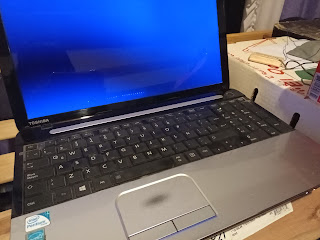
Jumpstarting a drained Toshiba C-50 ASP53xx Battery (Type:PA5024U)

Good News I was able to jumpstart the battery pack that I thought I was going to replace again at 50usd cost. This battery ended up to be of...